Hi
I am new with doors and i am trying to import a doc file.
My issue is that after import, i get an extra numbering that i would like to avoid :
Before import :
1. title 1
2. title 2
2.1 sub
After import :
1
1.1 title 1
1.2 title 2
1.2.1 sub
Can someone tell me how to keep my original numbering ?
thanks
franco
francobello - Tue May 24 11:00:58 EDT 2011 |
|
Re: Numbering after import from microsoft word
ChrisAnnal - Tue May 24 12:05:33 EDT 2011
Hi Franco,
I'm not sure what's going wrong with the import, but if you have a module where the Headings are "off" like you described, you may be able to fix that by doing the following:
1
(Select all of the 1.x sections and then right-click and choose "Cut" from the popup menu)
1.1 title 1
1.2 title 2
1.2.1 sub
THEN - Select the "1" section and right-click and choose "Paste" from the popup menu, this should paste the cut sections at the same level as the existing "1", so that they now look like this:
2 title 1
3 title 2
3.1 sub
DELETE the existing "1" and that should bump the other sections up, so that they now look like this:
1. title 1
2. title 2
2.1 sub
I hope this works for you - Good Luck!
Chris Annal
SW Test Engineer / DOORS Database Administrator
Sensis Corporation, East Syracuse, New York
chrisa@sensis.com
|
|
Re: Numbering after import from microsoft word
rmoskwa - Tue May 24 12:42:40 EDT 2011
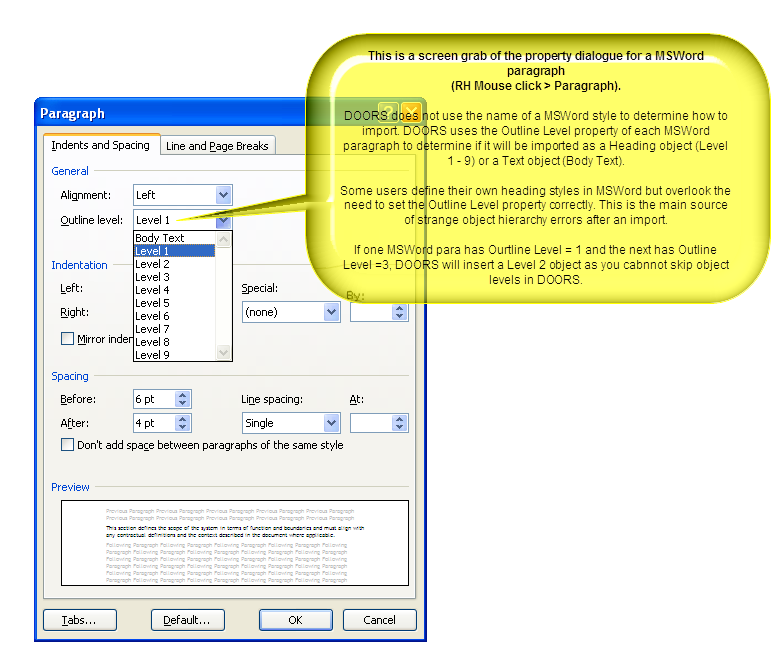
You need to look at the styles that were used in your Word document.
Word has Heading styles (Heading 1 through Heading 9)
Associated with the style is numbering, more inportantly, the outline number.
It is the outline number that determines the DOORS numbering.
|
|
Re: Numbering after import from microsoft word
SystemAdmin - Tue May 24 13:29:29 EDT 2011 rmoskwa - Tue May 24 12:42:40 EDT 2011
You need to look at the styles that were used in your Word document.
Word has Heading styles (Heading 1 through Heading 9)
Associated with the style is numbering, more inportantly, the outline number.
It is the outline number that determines the DOORS numbering.
|
|
Re: Numbering after import from microsoft word
SystemAdmin - Tue May 24 19:58:05 EDT 2011 ChrisAnnal - Tue May 24 12:05:33 EDT 2011
Hi Franco,
I'm not sure what's going wrong with the import, but if you have a module where the Headings are "off" like you described, you may be able to fix that by doing the following:
1
(Select all of the 1.x sections and then right-click and choose "Cut" from the popup menu)
1.1 title 1
1.2 title 2
1.2.1 sub
THEN - Select the "1" section and right-click and choose "Paste" from the popup menu, this should paste the cut sections at the same level as the existing "1", so that they now look like this:
2 title 1
3 title 2
3.1 sub
DELETE the existing "1" and that should bump the other sections up, so that they now look like this:
1. title 1
2. title 2
2.1 sub
I hope this works for you - Good Luck!
Chris Annal
SW Test Engineer / DOORS Database Administrator
Sensis Corporation, East Syracuse, New York
chrisa@sensis.com
Paul Miller
Melbourne, Australia
Attachments
attachment_14620718_MSWordParagraphProperties.png
|
|
Re: Numbering after import from microsoft word
francobello - Wed May 25 05:01:44 EDT 2011 ChrisAnnal - Tue May 24 12:05:33 EDT 2011
Hi Franco,
I'm not sure what's going wrong with the import, but if you have a module where the Headings are "off" like you described, you may be able to fix that by doing the following:
1
(Select all of the 1.x sections and then right-click and choose "Cut" from the popup menu)
1.1 title 1
1.2 title 2
1.2.1 sub
THEN - Select the "1" section and right-click and choose "Paste" from the popup menu, this should paste the cut sections at the same level as the existing "1", so that they now look like this:
2 title 1
3 title 2
3.1 sub
DELETE the existing "1" and that should bump the other sections up, so that they now look like this:
1. title 1
2. title 2
2.1 sub
I hope this works for you - Good Luck!
Chris Annal
SW Test Engineer / DOORS Database Administrator
Sensis Corporation, East Syracuse, New York
chrisa@sensis.com
thanks for your details... this works perfectly !
Have a nice day,
francobello
thanks to all as well for your support !
|
|